¶ 1. Product Overview
¶ 1.1 About the Top Cover
The U1 Top Cover is an add-on accessory designed for the U1. It creates a relatively enclosed chamber that uses heat from the heated bed to provide a more suitable printing environment for filaments such as ABS and ASA. It supports two operating modes: internal circulation for heat retention and external circulation for heat dissipation.
¶ 1.2 Key Features
- Automatic High/Low Temperature Chamber Switching:: Automatically selects internal or external circulation based on the filament type, supporting a wider range of printing applications.
- Air Filtration: A three-stage air filtration system helps reduce odors, harmful gases, and particulates during internal circulation.
- Noise Reduction: The enclosed design helps reduce operating noise for a quieter printing environment.
¶ 1.3 Components
The Top Cover consists of the following parts:
| Component | Description |
|---|---|
| Housing and Magnetic Front Door | Main housing with a magnetic front door for easy access. |
| Internal Circulation Kit | Includes the recirculation fan and filter for air circulating and filtration inside the chamber. |
| External Circulation Kit | Includes the exhaust fan for exhausting hot air from the chamber. No filter is included. |
¶ 2. First Use
Before first use, refer to the U1 Top Cover User Manual to assemble the Top Cover.
¶ 2.1 Before You Start
Before connecting the Top Cover, update the firmware and software to the required versions:
- Firmware: V1.5.2 or later
- Snapmaker Orca: V2.3.5 or later
- Snapmaker App: V2.3.5 or later
¶ 2.2 Setup Guide
Once connected, you will see the Top Cover control card on the screen. If it does not appear, check the Top Cover cable connection.
The setup guide appears when you connect the Top Cover for the first time. Follow the on-screen instructions to complete the setup.
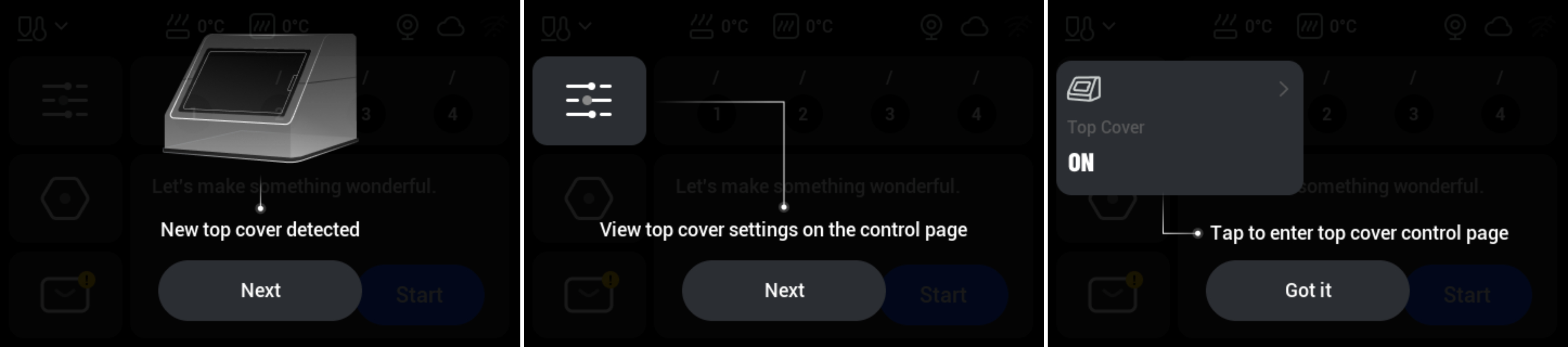
The setup guide appears only the first time you connect the Top Cover and will not be shown again.
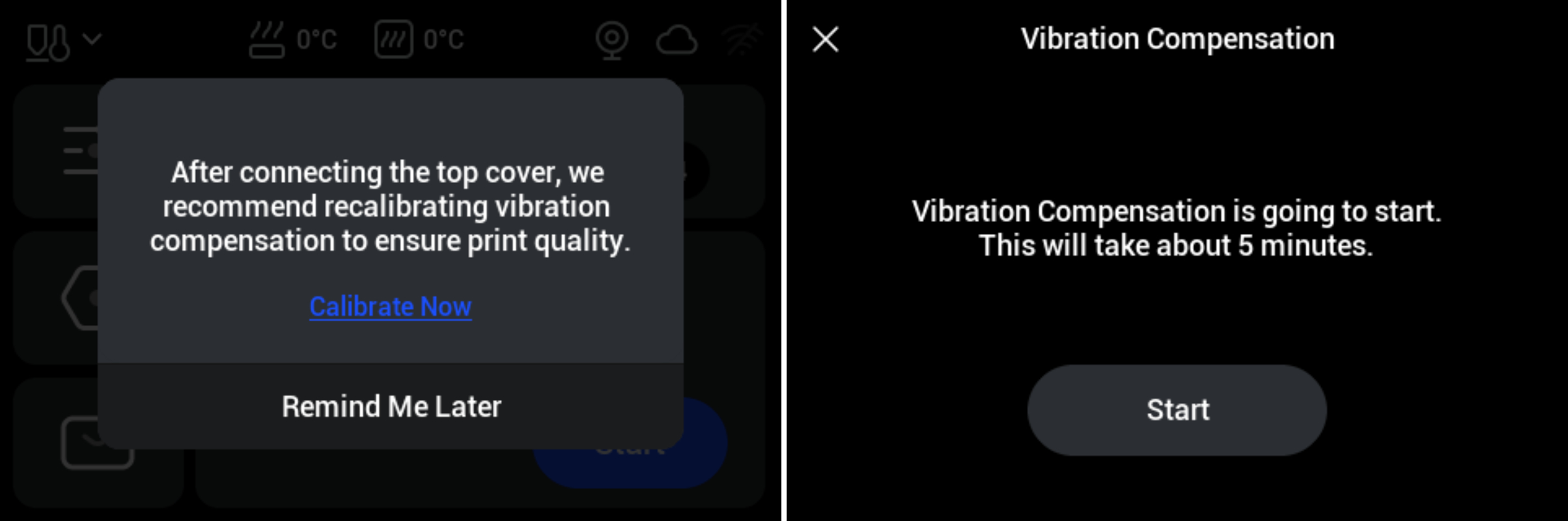
¶ 2.3 Perform Calibration
Connecting the Top Cover changes the mechanical resonance frequency of the U1. Therefore, you need to perform Vibration Compensation again to ensure print quality.
¶ 3. How It Works
¶ 3.1 Workflow
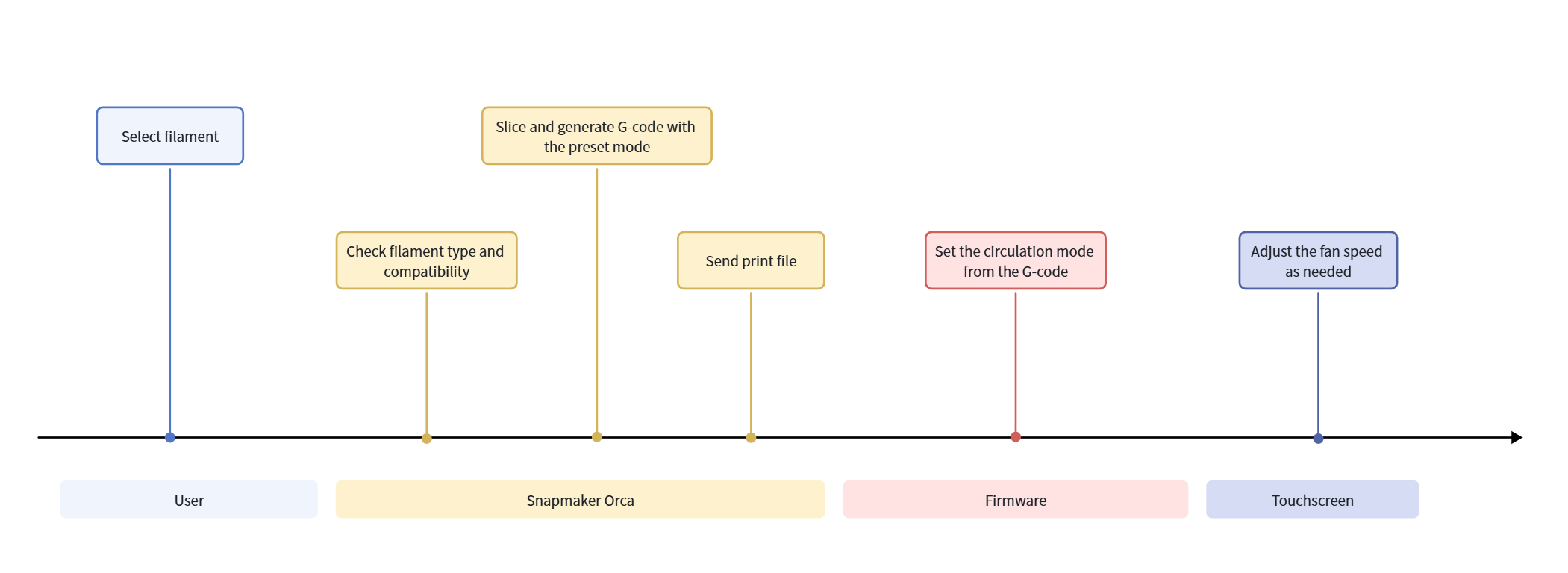
- Select the filament type in Snapmaker Orca.
- The software automatically determines the chamber mode based on the filament type and writes the corresponding circulation mode to the G-code.
- Send the G-code to the U1. The firmware automatically executes the commands.
You don't need to set the mode manually. Select the desired filament when slicing, and the system will automatically handles the mode and fan settings.
¶ 3.2 Circulation Modes
The Top Cover has two circulation modes. The slicing software selects the appropriate mode based on the filament's chamber temperature requirements.
¶ Internal Circulation: Heat Retention
- How it works: The recirculation fan drives air through the filter, filtering odors and particulates while retaining heat to maintain a warm chamber environment.
- When to use: For filaments that require a relatively warm and stable chamber environment, such as ABS, ASA, PC, PA, and PEBA.
¶ External Circulation: Heat Dissipation
- How it works: The exhaust fan draws in ambient air from the bottom and expels hot chamber air through the vent to lower the chamber temperature.
- When to use: For filaments that do not require a high-temperature chamber environment, such as PLA, TPU, and PVA.
¶ 3.3 Filament Compatibility
The circulation mode is determined by the selected filament. Based on its chamber temperature requirements, the slicing software automatically determines the appropriate mode to the G-code.
¶ Quick Reference
For multi-color or multi-material prints, use filaments with the same circulation mode whenever possible to avoid conflicting chamber temperature requirements.
| Mode | Typical Filaments | Characteristic |
|---|---|---|
| Internal Circulation | PEBA, ASA, ABS, PC, PA, PETG | Require a relatively warm and stable chamber environment |
| External Circulation | PLA, TPU, PVA, PLA support | Sensitive to high chamber temperatures and require heat to be exhausted promptly |
¶ Using Multiple Filaments
When multiple filaments are used in one print, Snapmaker Orca determines the final circulation mode based on their chamber temperature requirements.
| Filament Combination | Result | Example |
|---|---|---|
| All use internal circulation | Slice normally and use internal circulation mode | ABS + ASA |
| All use external circulation | Slice normally and use external circulation mode | PLA + TPU |
| Require different modes | Slicing is generally prohibited. For certain combinations, the more temperature-sensitive filament takes priority. | PETG + PLA |
- If all filaments use the same mode, that mode is used.
- If the filaments use different modes, slicing is generally prohibited.
For certain combinations, Snapmaker Orca determines the final mode based on the filaments' sensitivity to chamber temperature. For example, when printing with PETG and PLA, PLA is more sensitive to high chamber temperatures, so the software prioritizes PLA and uses external circulation mode.
¶ 4. Operation
¶ 4.1 Control Access
The Top Cover mode is determined by the filament and cannot be switched manually. However, after a print starts, you can adjust the fan speed on the Top Cover control page on the U1 touchscreen, in Snapmaker Orca, or in the Snapmaker App according to your needs.
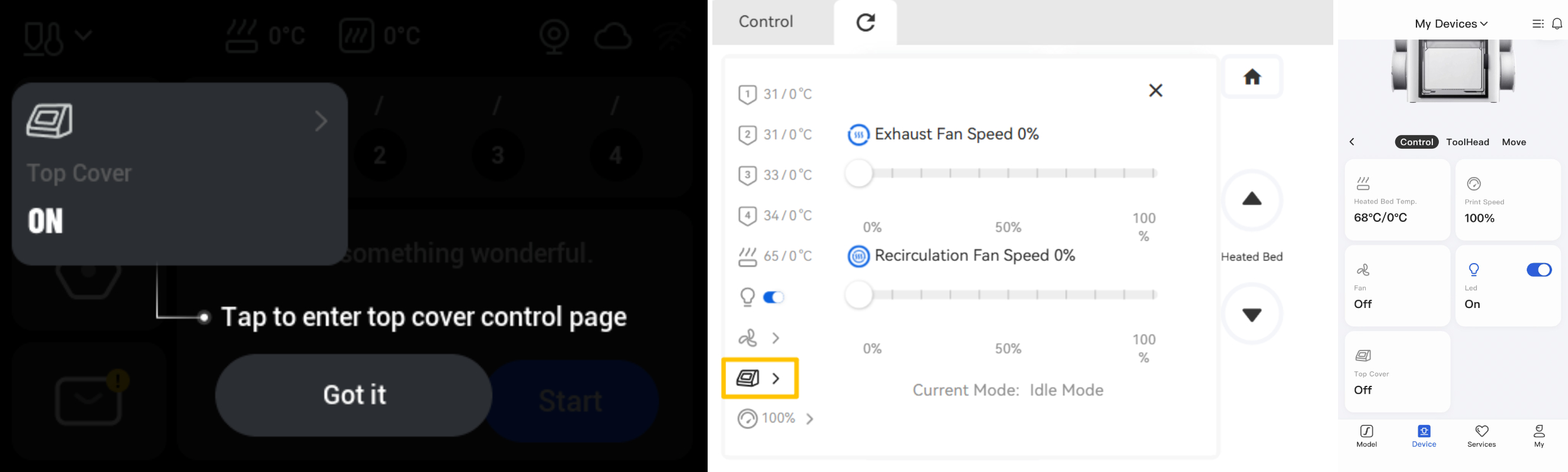
Adjusting the fan speed does not change the circulation mode of the current print job.
¶ 4.2 Fan Control
The two fans have different adjustment ranges depending on the operating mode. Some speed settings can be limited to maintain filtration performance and print quality.
¶ Internal Circulation Mode
- Recirculation fan: Adjustable down to 10%. Lowering the preset speed may affect filtration performance.
- Exhaust fan: Not adjustable. It cannot be turned on in internal circulation mode to retain chamber heat.
¶ External Circulation Mode
- Exhaust fan: Adjustable but cannot be turned off. Lowering the preset speed may affect print quality.
- Recirculation fan: Freely adjustable.
¶ 5. FAQ
Q1. Why can't I find a switch for internal/external circulation on the U1 touchscreen?
Q2. Does the Top Cover automatically switch modes based on the filament?
Q3. Can the recirculation fan and exhaust fan run at the same time?
① Standby: Yes. Both fans can be controlled independently and adjusted freely.
② Internal circulation mode: No. The exhaust fan is automatically turned off to retain chamber heat.
③ External circulation mode: Yes. The exhaust fan can be adjusted but cannot be turned off, while the recirculation fan can be turned on as needed.
Q4. Are the Top Cover fan settings written to the G-code?
Q5. Will fan speed changes made on the U1 touchscreen during printing be saved permanently?
Q6. Can I save a different Top Cover fan speed for each filament?
Note: External circulation mode features overheat protection. If the chamber temperature becomes too high during printing, the Top Cover automatically increases the exhaust fan speed to accelerate heat dissipation and reduce the risk of nozzle clogging caused by filament softening at high temperatures. Therefore, even if you manually lower the fan speed, it may be automatically increased when overheat protection is triggered.
Q7. When printing with PLA, does the Top Cover fan start automatically, or do I need to turn it on manually to prevent nozzle clogging caused by excessive chamber temperatures?
Q8. When should I replace the filter?
You can also go to Settings > Device Maintenance > Usage Statistics to obtain filter information.
Q9. Why does the exhaust fan turn on for high-temperature filaments / the recirculation fan turn on for heat-sensitive filaments?
This issue may be caused by an error in the Snapmaker Orca configuration files. Please update the software to the latest version. If you are already using the latest version of Snapmaker Orca, please install the hotfix provided through the software.