¶ When to Use
-
The printer frequently disconnects, appears offline, or fails to bind.
-
When managing multiple printers on a local network, their IP addresses may change after a power cycle or restart, requiring them to be paired again.
¶ Preparation
¶ Procedure
This guide uses the RG-X60 PRO router as an example. The steps may vary depending on the router brand and model. If needed, contact your router manufacturer's customer support or technical support team for assistance.
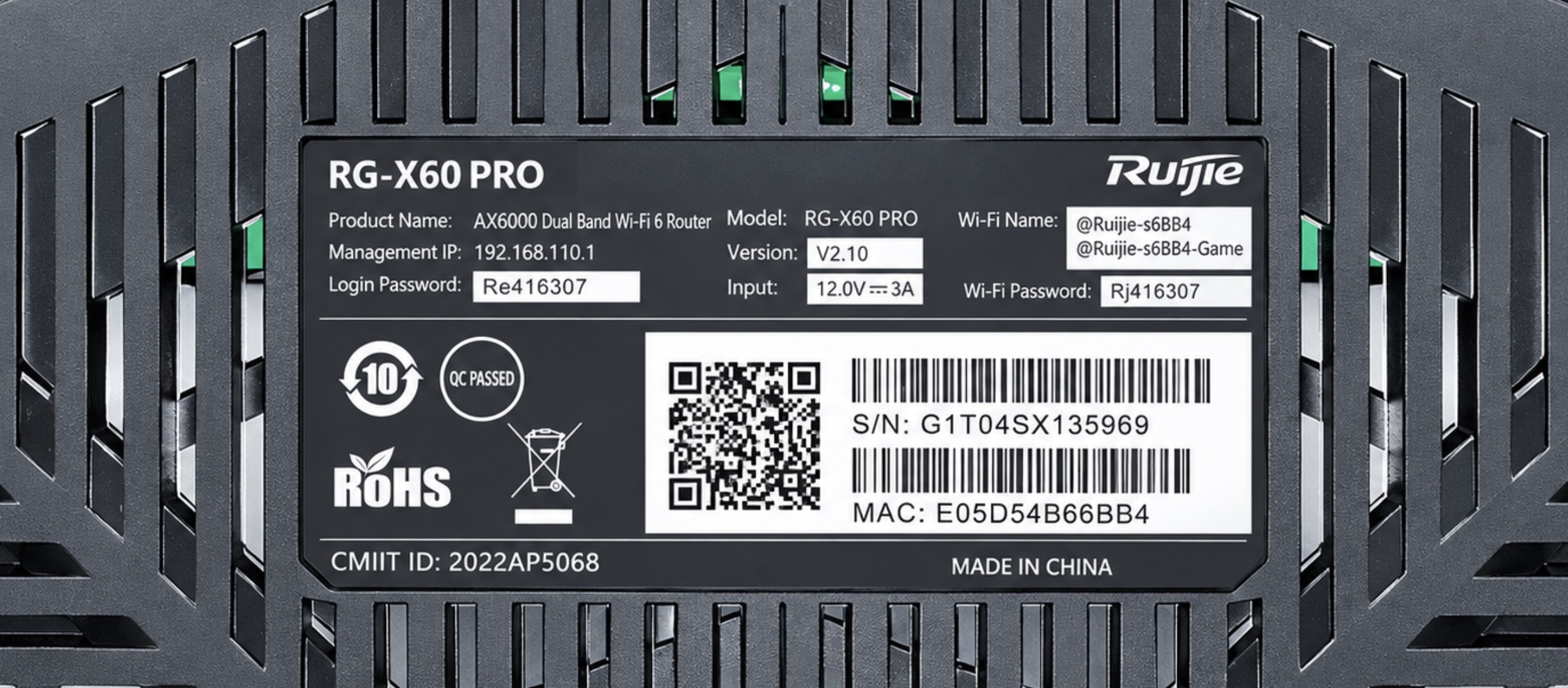
(1) Make sure your phone, computer, or tablet and the printer are connected to the same router. You can usually find the router's management page address and login password on a label at the bottom of the router, as shown below:
-
Management Page: 192.168.110.1
-
Login Password: Re416307
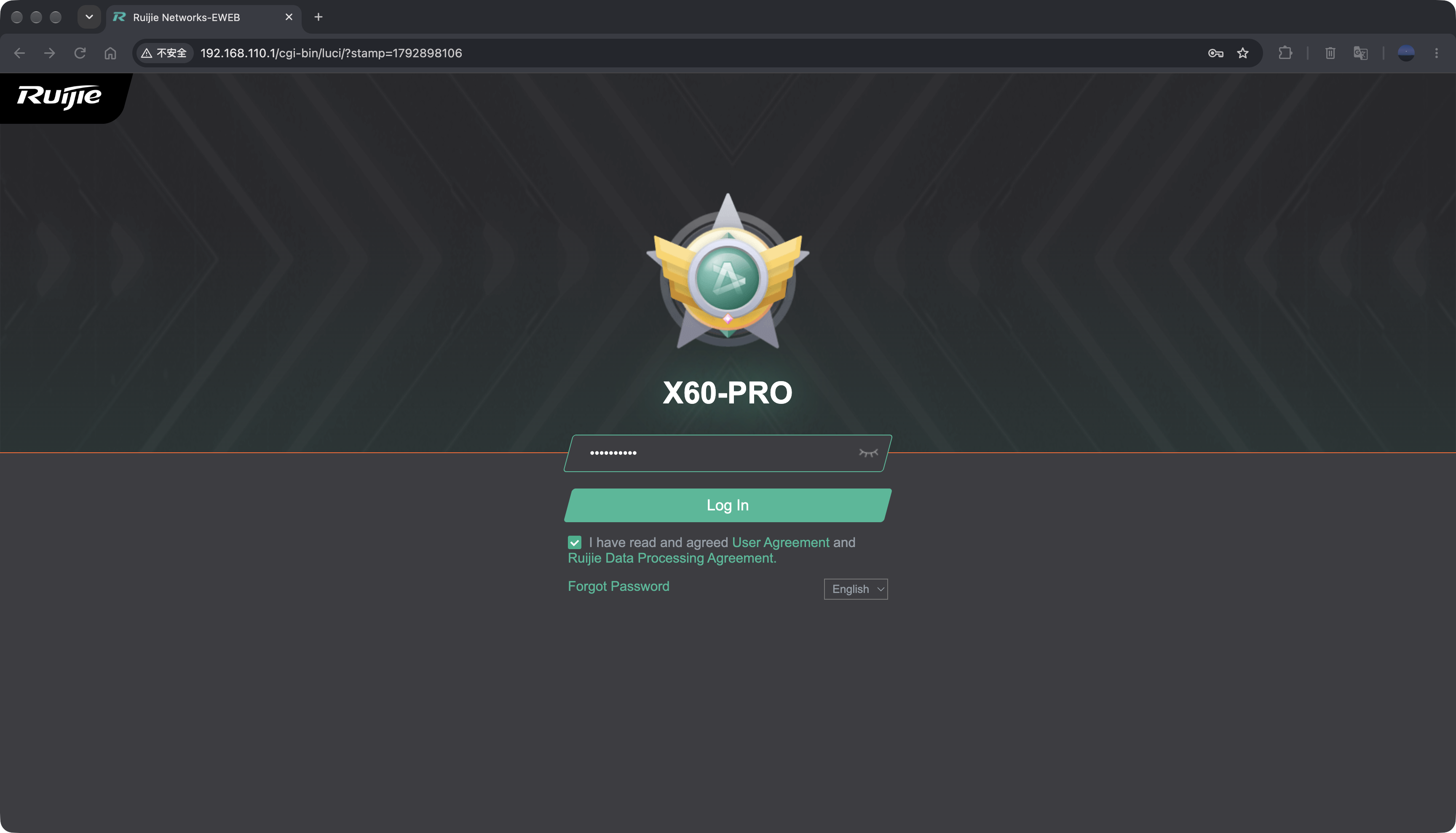
(2) Enter the management page address (192.168.110.1) in your browser's address bar and press Enter. Then, enter the login password to access the router's management interface.
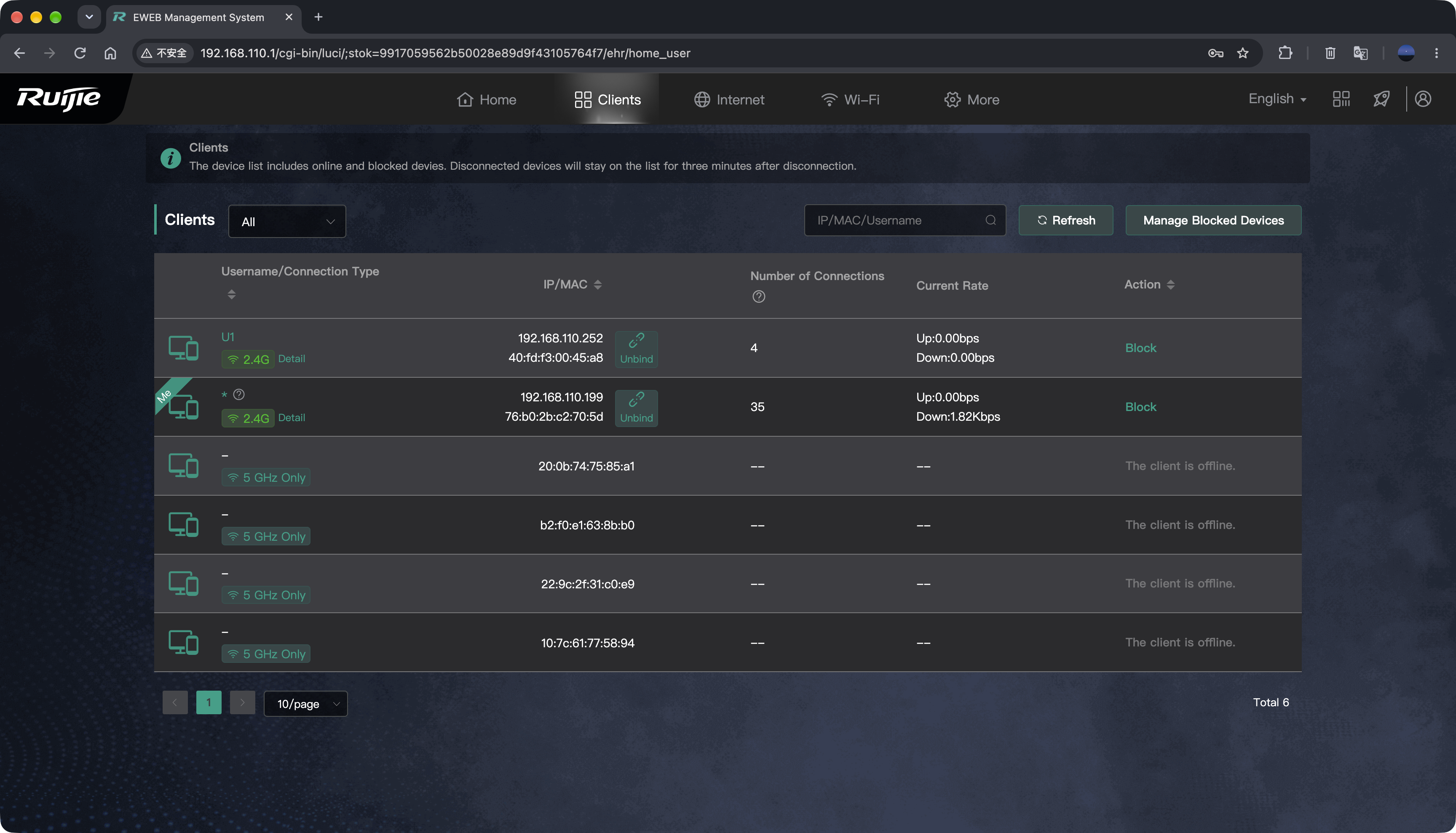
(3) Click Client to view all devices connected to the router.
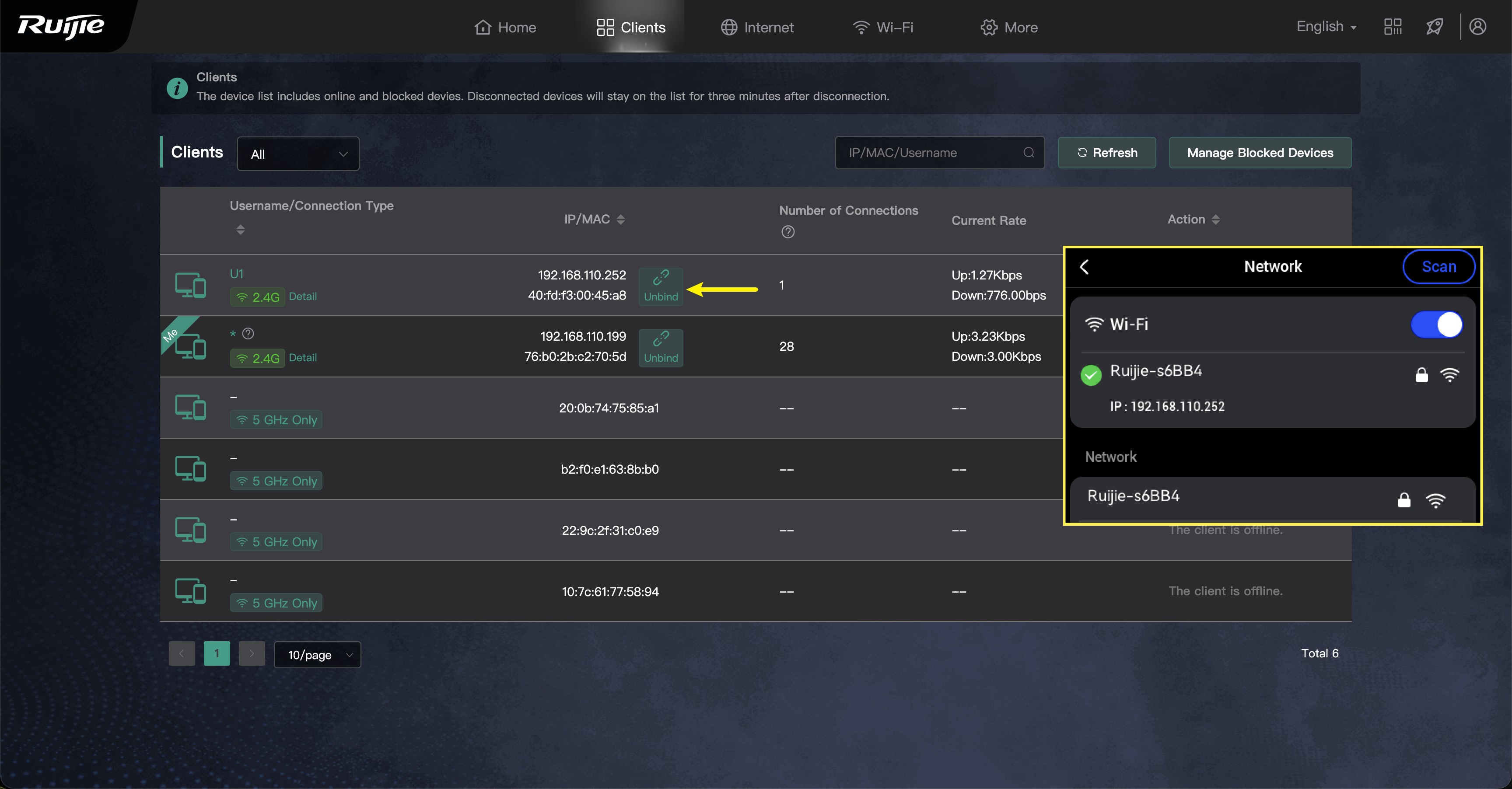
(4) Locate your U1 by checking the IP addresses of the connected devices.
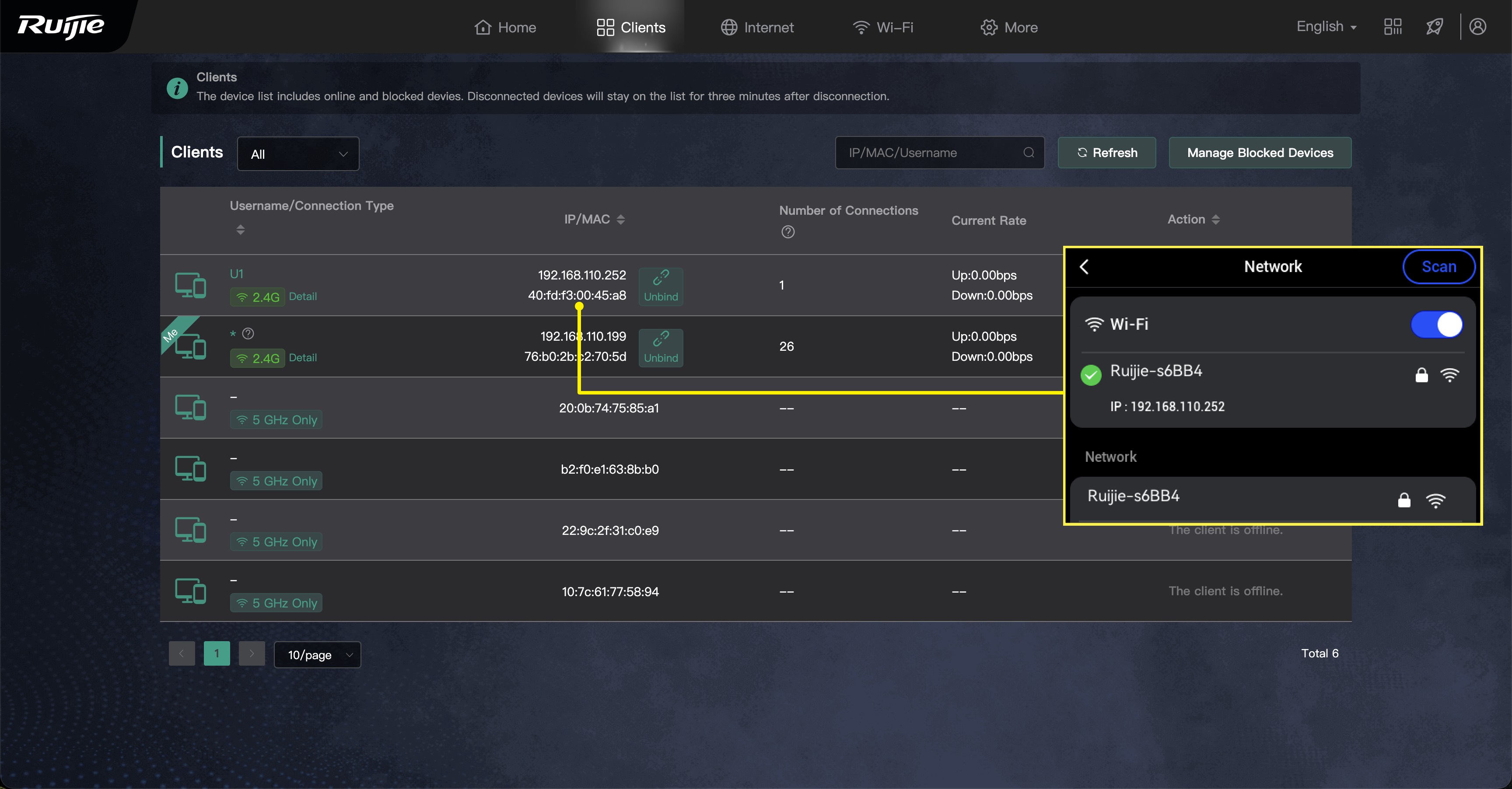
(5) Devices connected to the router for the first time are usually marked as Unbind. Click Unbind to bind the device's MAC address to its current IP address.
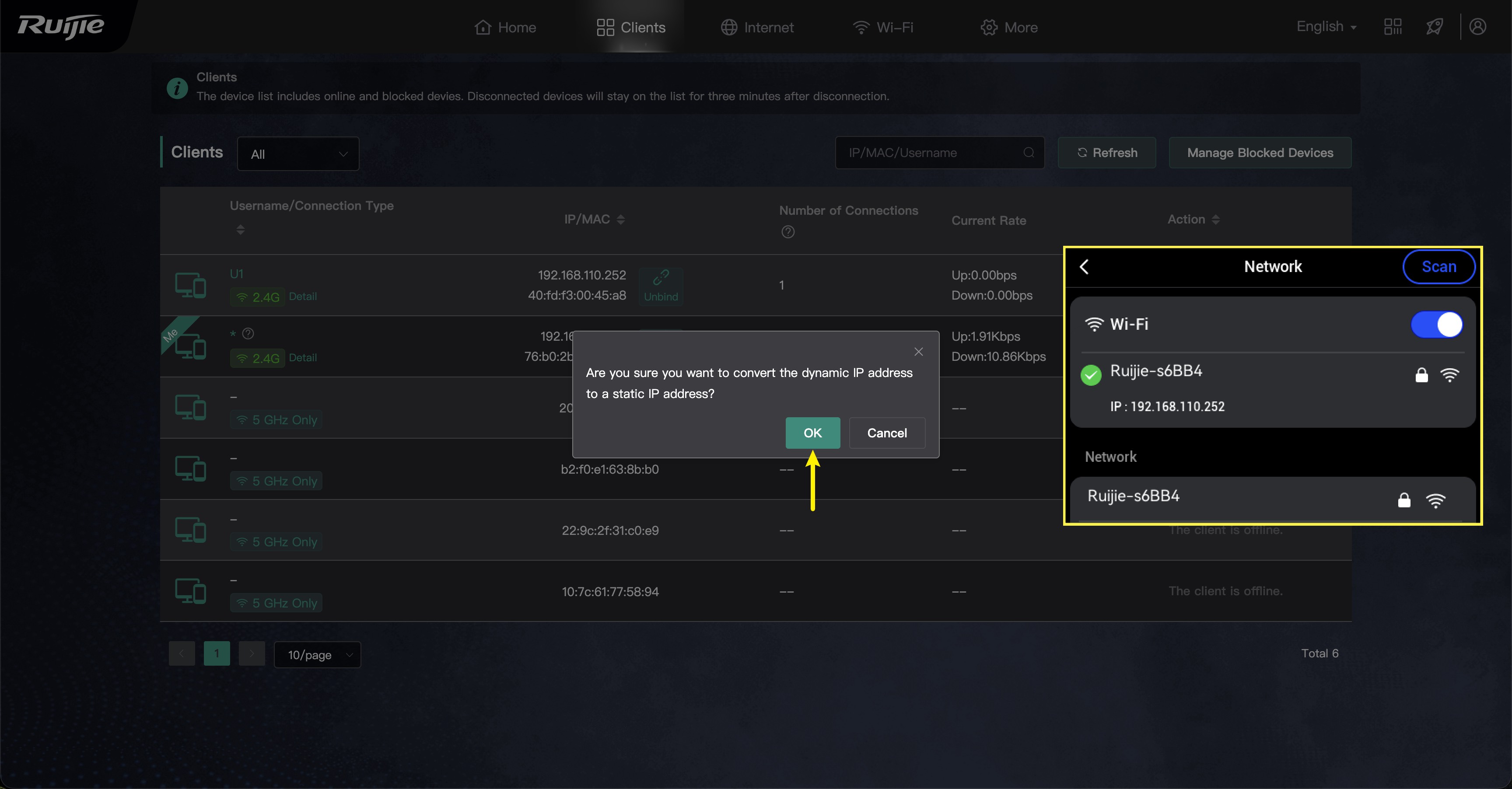
(6) When the confirmation dialog appears, click OK to complete the static DHCP lease.
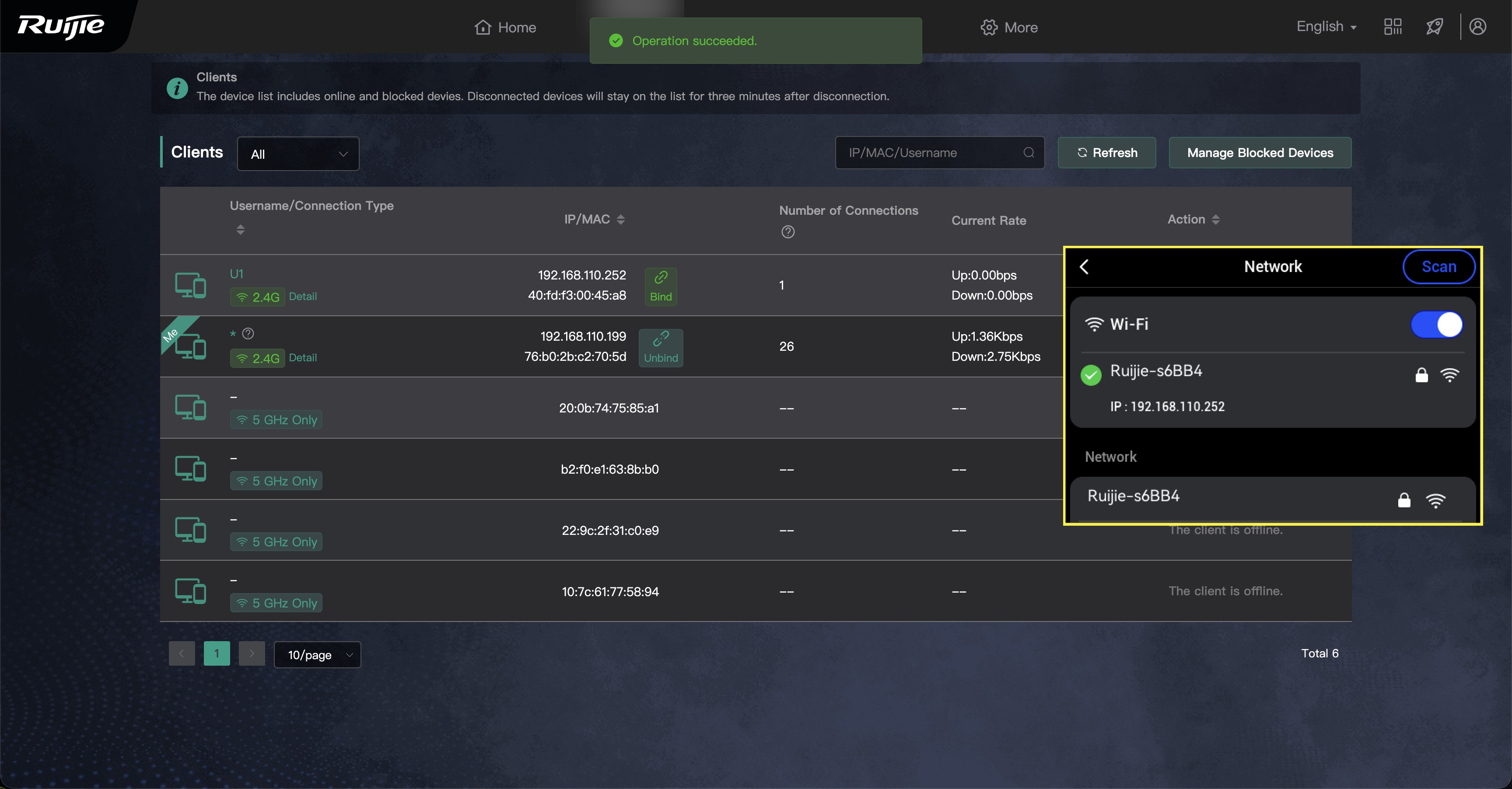
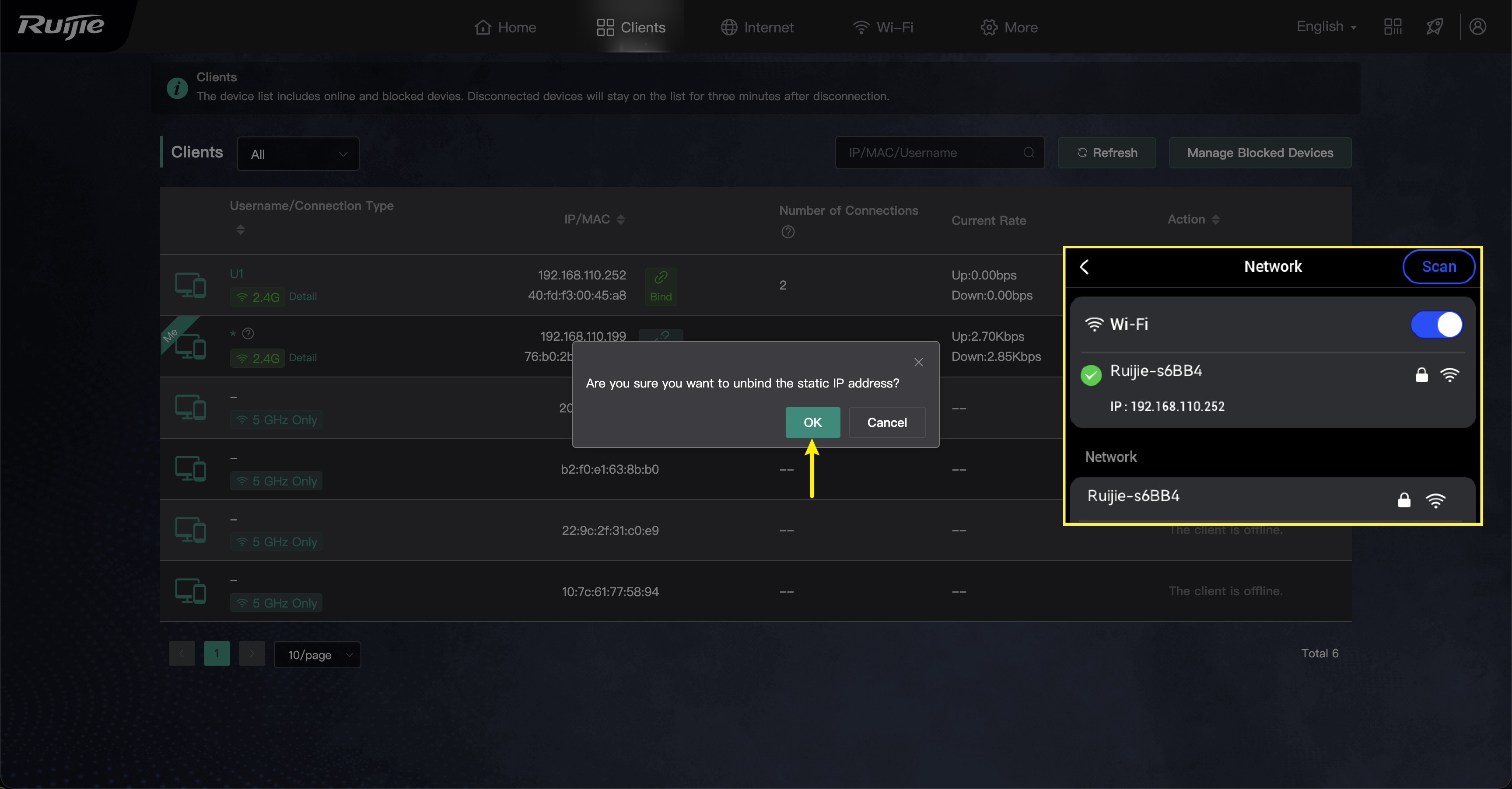
(7) To remove the static DHCP lease, click Bind and confirm the action.
¶ Endnote
If your issue remains unresolved, please contact technical support, our dedicated support team will be more than willing to assist you in resolving the issue.
If you have any suggestions or feedback about this wiki, feel free to leave a comment below. Every piece of feedback helps us improve our documentation.